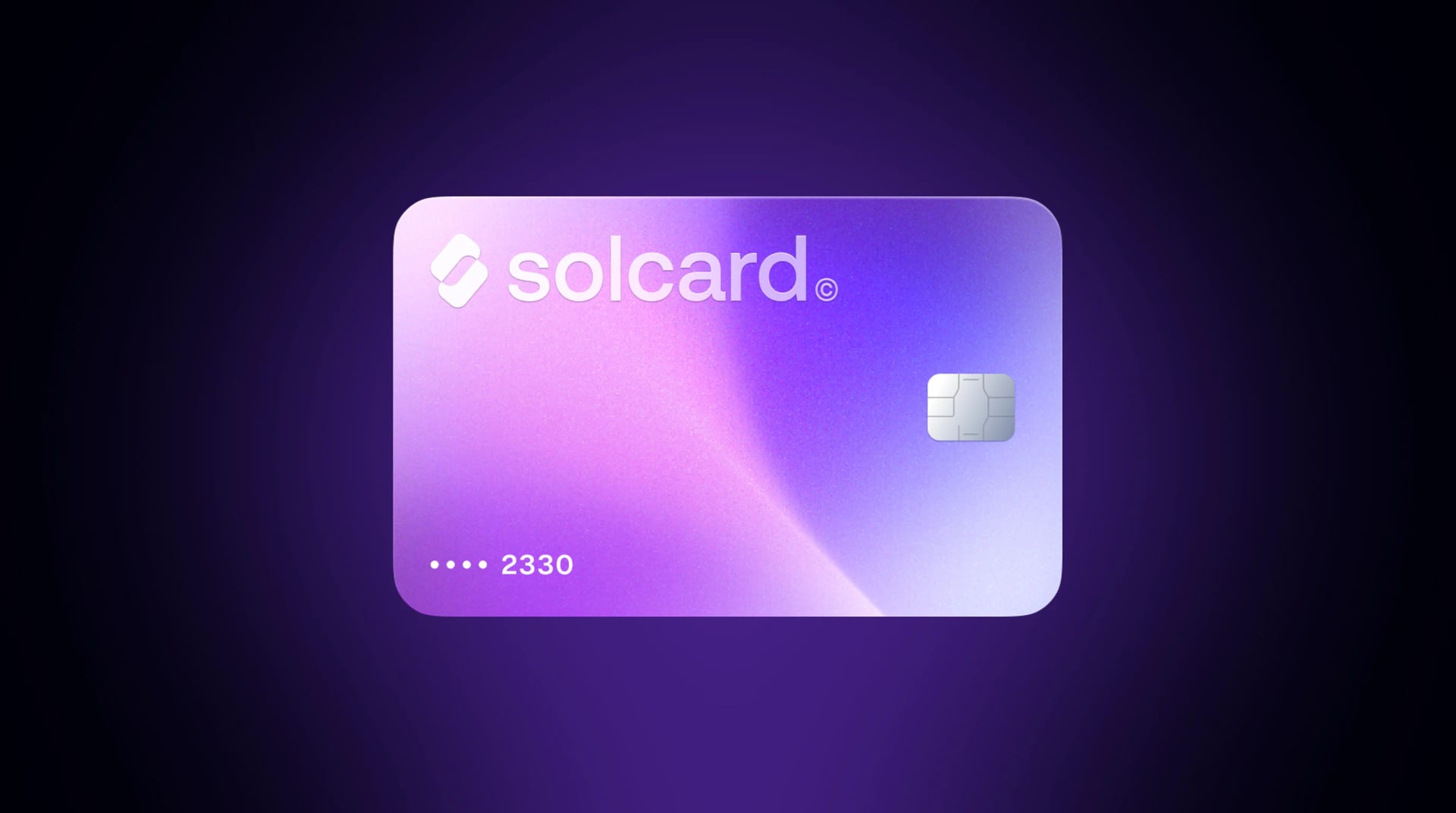
Apple Pay Crypto Card: Add a Crypto Visa to Apple Wallet (2026)

Apple Pay does not support cryptocurrency directly. You cannot load Bitcoin, Ethereum, or USDC into Apple Wallet and tap to pay. But there is a straightforward workaround that millions of crypto holders already use: add a crypto-funded debit card to Apple Wallet, and every tap converts your digital assets to fiat at the point of sale.
This guide covers exactly how to set that up, which crypto cards support Apple Pay in 2026, what fees to expect, and how to avoid the common pitfalls that trip people up during the process.
Apple Pay processes payments through Visa, Mastercard, and American Express networks, traditional banking rails that only handle fiat currency. No blockchain transaction happens at checkout. No merchant needs to understand crypto.
Here is the flow when you tap your phone at a coffee shop:
- You top up your crypto card. You deposit SOL, USDC, BTC, or another supported asset into your crypto card provider's platform.
- The provider converts to fiat. Your crypto balance is converted to local currency (USD, EUR, GBP, etc.) either at top-up time or at the point of sale, depending on the provider.
- You add the card to Apple Wallet. The crypto-funded Visa or Mastercard is added to Apple Pay like any other debit card.
- You tap to pay. Apple Pay transmits a tokenized version of your card number via NFC. The merchant's terminal processes a standard card transaction.
- Settlement happens normally. The merchant receives fiat. They never know crypto was involved.
From Apple's perspective, your crypto card is just another Visa or Mastercard. Apple Pay doesn't know or care that the funds originated from cryptocurrency, which is why the setup process is identical to adding any other debit card.
For a deeper look at how crypto-to-fiat card payments work under the hood, see our guide on what a crypto debit card actually is.
Not every crypto card works with Apple Pay. Some providers only support Google Pay, and many virtual-only cards lack mobile wallet integration entirely. Here is a comparison of the major options that confirmed Apple Pay support as of March 2026.
| Card | Apple Pay | Google Pay | Top-Up Fee | KYC Required | Key Limitation |
|---|---|---|---|---|---|
| SolCard Platinum | Yes | Yes | 0% | Yes | No cashback |
| Crypto.com Visa | Yes | Yes | 0% (fiat) | Yes | Staking required for top rewards |
| MetaMask Card | Yes | Yes | Not published | Yes | $199/yr metal card fee |
| Coinbase Card | Yes | Yes | 0% | Yes | Spread on conversion -- see Coinbase's fee page |
| Bybit Card | Yes | Yes | 0% | Yes | Limited regional availability |
| KuCard (KuCoin) | Yes | Yes | 0% | Yes | EUR-denominated only |
| Oobit | Yes | Yes | Varies | Yes | Newer platform, limited track record |
| SolCard Virtual | No | No | 5% | No | No mobile wallet support |
Two points stand out:
SolCard's Virtual tier does not support Apple Pay. Only the SolCard Platinum card, which requires KYC verification, can be added to Apple Wallet or Google Pay. The Virtual card works for online purchases but cannot be used for contactless in-store payments. If Apple Pay matters to you, you will need to complete identity verification for the Platinum tier.
Most Apple Pay-compatible crypto cards require KYC. This is not a SolCard limitation; it is an industry-wide pattern. Card networks (Visa, Mastercard) and Apple's own compliance requirements generally mandate identity verification for cards provisioned into mobile wallets.
For a broader comparison of crypto debit cards beyond Apple Pay compatibility, see our best crypto debit cards breakdown.
Apple Pay compatibility is not something a card provider can switch on unilaterally, which is why the "Yes" and "No" column above splits providers rather than whole companies.
Adding a card to Apple Wallet is a provisioning request, not a form submission. Apple passes your card details to the issuing bank, the bank checks whether the card is eligible, and only then does the card network mint the Device Account Number that lives on your phone. Apple states plainly that Apple Pay requires a supported card from a participating card issuer, and that unresolved add-card failures go back to that issuer, not to Apple. If the issuer behind a crypto card has not enrolled that card programme, the request is refused before your phone ever sees a token.
Three things decide the outcome:
- The issuing bank's participation. Crypto cards are issued by a partner bank under a BIN sponsorship arrangement. That bank has to support mobile wallet provisioning for the specific programme, not merely exist on the Visa or Mastercard network.
- The card tier. Providers commonly enrol only their identity-verified tier. That is why SolCard Platinum provisions and the Virtual tier does not, and it is the same pattern across the industry rather than a quirk of one provider.
- Your region. Apple Pay operates in 70+ countries, but a card programme can be live in a country where its issuer has not enabled wallet provisioning. The card works online and in-store on the physical rails while the Wallet add still fails.
The practical consequence: check the provider's own Apple Pay statement for the exact tier you hold before you buy. A provider saying "our cards work with Apple Pay" often means one of its tiers does.
A recurring question is whether there is a card network built on Solana. The honest answer is that these are two separate rails, and conflating them is where the confusion starts.
The card rail is Visa, Mastercard, or American Express. Every Apple Pay tap, at every terminal, in every country, settles over one of those three networks. No merchant terminal speaks to a blockchain, and none needs to. This is a hard constraint, not a gap waiting to be filled: Apple Pay's tokenization model is defined by the card networks themselves, so a payment instrument that is not a network card cannot be provisioned into Apple Wallet at all.
The funding rail is where Solana does the work. When a card is described as a Solana card, what runs on Solana is the top-up: you send SOL, USDC, or USDT to the provider, the transfer confirms on-chain, and your card balance rises. On SolCard, that leg settles in under a second with a network fee under $0.01, and the same balance is reachable from Ethereum, Polygon, BSC, Arbitrum, Optimism, Avalanche, and Base as well.
What that split gives you in practice is a funding step with the economics of a Solana transfer and a spending step with the acceptance of a Visa card. You are not waiting on a bank transfer to reload, and the coffee shop is not waiting on a block confirmation to hand you your coffee. The trade-off is that everything downstream of the top-up follows card-network rules: authorization holds, chargeback windows, merchant category restrictions, and the issuer participation requirement described above.
This is also why "buy Solana with Apple Pay" and "spend Solana with Apple Pay" are different tasks. Buying SOL with Apple Pay happens at an exchange or on-ramp that accepts Apple Pay as a funding method for a crypto purchase. Spending is the reverse direction and is what this guide covers: crypto you already hold, converted to fiat, tapped at a terminal.
The process takes under five minutes if your crypto card provider supports Apple Pay. Here is the exact walkthrough on iPhone.
Before you start, make sure you have:
- An iPhone with Face ID or Touch ID (iPhone 8 or later)
- iOS 16 or later installed (iOS 18+ recommended for the Tap to Provision feature)
- An Apple Account signed in with iCloud enabled
- A passcode set on your device
- A crypto debit card from a provider that supports Apple Pay (see the comparison above)
Most crypto card apps include a built-in "Add to Apple Wallet" button. This is the fastest method.
- Open your crypto card provider's app (e.g., SolCard, Crypto.com, or MetaMask)
- Navigate to your card details or card management screen
- Tap "Add to Apple Wallet" or "Add to Apple Pay"
- Follow the on-screen prompts to verify your identity (Face ID or passcode)
- Accept the terms and conditions from the card issuer
- Your card appears in Apple Wallet, ready to use
If your provider does not have a direct integration button, you can add the card manually:
- Open the Wallet app on your iPhone
- Tap the "+" button in the top-right corner
- Select "Debit or Credit Card" and tap Continue
- Scan your card using the camera, or tap "Enter Card Details Manually" and type in the card number, expiration date, and CVV
- Your card issuer may require additional verification: a text message code, email confirmation, or in-app approval
- Once verified, the card is added and ready for contactless payments
On iPhones running iOS 18 or later, you can add eligible cards by simply tapping your physical card against the back of your iPhone. The NFC reader picks up the card details, and you complete setup by entering your CVV. This works with physical crypto debit cards that have NFC chips.
If you have an Apple Watch paired with your iPhone:
- Open the Apple Watch app on your iPhone
- Go to the My Watch tab
- Select Wallet & Apple Pay
- Tap Add Card and follow the same verification steps
You can add up to 16 cards per device, so your crypto card can sit alongside your regular bank cards.
Once your card is added to Apple Wallet, using it is identical to any other Apple Pay transaction.
- Hold your iPhone near the contactless payment terminal
- Authenticate with Face ID (glance at your screen) or Touch ID (rest your finger on the sensor)
- Keep your phone near the terminal until you see a checkmark and feel a haptic tap
- Done. The entire process takes about two seconds
On Apple Watch, double-click the side button, hold your wrist near the terminal, and wait for the tap confirmation.
When checking out on websites or apps that accept Apple Pay:
- Select Apple Pay as your payment method
- Confirm the payment with Face ID or Touch ID
- The transaction processes instantly, with no card numbers to type
Apple Pay is accepted at over 90% of US retailers and millions of locations globally. Any store displaying the contactless payment symbol or the Apple Pay logo will work. This includes grocery stores, restaurants, gas stations, transit systems, vending machines, and online merchants.
Because your crypto card runs on Visa or Mastercard rails, the merchant acceptance is identical to a regular bank debit card. You are not limited to "crypto-friendly" merchants. For more on where and how to pay with crypto in the real world, we have a comprehensive breakdown.
Using Apple Pay itself is free; Apple does not charge transaction fees on the consumer side. But the crypto card underneath does have costs, so it is worth understanding the full fee stack.
| Fee Type | What It Covers | Typical Range |
|---|---|---|
| Top-up fee | Converting crypto to card balance | 0%--5% depending on card and tier |
| Per-transaction fee | Flat fee per purchase | $0+ per transaction (varies by provider) |
| FX fee | Currency conversion at point of sale | 0%--2% of transaction amount |
| Conversion spread | Difference between market rate and card rate | 0%--2.5% (hidden by some providers) |
| Card issuance | One-time fee to create the card | $0--$10 |
For SolCard Platinum (the tier that supports Apple Pay):
- Top-up fee: 0%
- FX fee: 0%--1.5%
- Card issuance: $10
- Monthly fee: $0
SolCard does not currently offer a cashback or rewards program. Some competitors like Crypto.com and Bybit offer 1%--3% back, though those rewards often come with staking requirements or spending conditions.
The total cost of a transaction depends on your specific card. Here is what a $50 purchase looks like on different platforms:
| Card | Top-Up Fee | Tx Fee | Spread/FX | Total Cost on $50 |
|---|---|---|---|---|
| SolCard Platinum | $0 | $0 | ~$0.50 (1%) | ~$0.50 |
| Coinbase Card | $0 | $0 | Spread applies -- see Coinbase's fee page | Not published |
| Crypto.com (Ruby) | $0 | $0 | ~$0.25 (0.5%) | ~$0.25 |
| MetaMask Card | Not published | $0 | ~$0 (network rate) | Not published |
These are estimates; actual costs vary by currency pair, time of day, and market conditions. MetaMask states there are "no additional MetaMask fees" on conversion at Mastercard's rates, but its premium metal card carries a $199 annual fee that changes the math significantly for lower-volume spenders.
One underrated benefit of using Apple Pay with a crypto card is the added security layer. Apple Pay uses a system called tokenization that makes transactions significantly safer than swiping or inserting a physical card.
When you add a card to Apple Pay, your actual card number is never stored on your device or on Apple's servers. Instead, Apple works with your card issuer to create a Device Account Number, a unique token that represents your card. This token is stored in a Secure Element, a dedicated chip on your iPhone that is isolated from the rest of the operating system.
Every time you make a payment, the Secure Element generates a one-time dynamic security code specific to that transaction. The merchant receives the token and the dynamic code, never your real card number. Even if a merchant's system is breached, attackers get a useless token that cannot be reused.
- Your card number is never exposed to merchants or their payment terminals
- No skimming risk: NFC transactions do not expose copyable data
- Remote disable: if your phone is lost, you can instantly suspend Apple Pay via Find My iPhone
- Biometric lock: every transaction requires Face ID, Touch ID, or your passcode
This matters more for crypto card users because replacing a compromised crypto card often means reissuing it and re-depositing funds, a bigger hassle than with a traditional bank card. Apple Pay's tokenization significantly reduces the chance of that happening.
This is the part most guides skip, but it matters. In the United States and many other jurisdictions, every time you spend cryptocurrency, including through a crypto debit card linked to Apple Pay, it is a taxable event.
When your crypto card converts cryptocurrency to fiat at the point of sale, the IRS treats this as a disposal of a capital asset. You owe capital gains tax on the difference between what you paid for the crypto (your cost basis) and its fair market value at the time of the transaction.
Example: You bought 10 SOL at $50 each ($500 total). SOL rises to $150. You spend $150 worth of SOL on dinner. Your capital gain is $100 ($150 fair market value minus $50 cost basis), and you owe tax on that $100 gain.
- Use stablecoins. Loading your card with USDC or USDT means the value rarely changes between purchase and spending, resulting in minimal or zero capital gains. This is the simplest approach for everyday spending. For more on tax-efficient crypto spending strategies, see our guide on spending crypto without triggering unnecessary taxes.
- Track every transaction. Starting in the 2025 tax year, crypto platforms must issue Form 1099-DA. But maintaining your own records with tools like Koinly or CoinTracker is still recommended.
- Mind the holding period. Assets held for more than one year qualify for long-term capital gains rates (0%, 15%, or 20% in the US), which are lower than short-term rates taxed as ordinary income.
If you want to use SolCard with Apple Pay, here is the specific process for the Platinum tier.
Go to the SolCard website and sign in with your email. SolCard uses a passwordless login: you receive a one-time code via email instead of creating a password. Account creation takes under a minute.
Since Apple Pay requires the Platinum tier, you will need to complete KYC verification. This involves:
- Uploading a government-issued photo ID (passport, driver's license, or national ID)
- A selfie for facial verification
- Basic personal information (name, address, date of birth)
Verification typically completes within minutes during business hours.
Once verified, your Platinum Visa card is issued; SolCard quotes roughly 30 seconds for card generation. You will see your virtual card details (number, expiration, CVV) in the dashboard.
From the SolCard dashboard or app, tap "Add to Apple Wallet." Alternatively, open the Wallet app on your iPhone, tap "+", select "Debit or Credit Card," and enter your SolCard details manually. Complete verification when prompted.
Deposit SOL, USDC, or USDT to your SolCard balance. Platinum tier has 0% top-up fees. The top-up is processed over the Solana network, which means sub-second confirmation times and transaction fees under $0.01. SolCard also supports stablecoins across 9+ networks including Ethereum, Polygon, BSC, Arbitrum, Optimism, Avalanche, and Base.
Your SolCard is now ready for contactless payments via Apple Pay at any of the 150M+ merchants that accept Visa or Mastercard worldwide.
Both mobile wallets work similarly with crypto cards, but there are practical differences worth knowing.
| Feature | Apple Pay | Google Pay |
|---|---|---|
| Devices | iPhone, Apple Watch, iPad, Mac | Android phones, Wear OS watches |
| Authentication | Face ID, Touch ID, passcode | Fingerprint, PIN, face unlock |
| NFC payments | iPhone 8+ | Most Android phones with NFC |
| Online payments | Safari + apps | Chrome + apps |
| Card limit per device | Up to 16 | Up to 40 |
| Tokenization | Secure Element hardware | Host Card Emulation (cloud-based) |
| Transit support | Express Transit (no auth needed) | Transit payments supported |
The security models differ in one important way. Apple Pay stores tokens in a hardware Secure Element, a dedicated chip that is physically isolated. Google Pay primarily uses Host Card Emulation (HCE), which stores tokens in a cloud-secured environment. Both are considered safe, but Apple's hardware approach is generally regarded as slightly more secure against sophisticated attacks.
For crypto card users specifically, the practical difference is minimal. Both wallets tokenize your card, both require biometric or passcode authentication, and both work at the same contactless terminals. Choose based on your phone, not the wallet technology.
If you use Android, SolCard Platinum supports Google Pay with the same 0% top-up fees and identical card functionality.
This is the most common issue. Try these steps:
- Update iOS: older versions may lack support for your card issuer
- Check your region: Apple Pay is available in 70+ countries, but some crypto card issuers have geographic restrictions
- Verify your card is active: ensure your crypto card is fully activated and has completed any required verification
- Contact your card issuer: some providers require you to enable Apple Pay from within their app first
- Check card limits: you can add up to 16 cards per device. Remove unused cards if you have hit the limit
- Insufficient balance: unlike a bank debit card, crypto cards only spend what you have loaded. Check your card balance in your provider's app
- Merchant restrictions: some merchants block prepaid cards. This is a merchant-side issue, not an Apple Pay problem
- Geographic restrictions: some crypto cards limit transactions to certain regions
This one catches people who have never used a prepaid card at a fuel pump, a hotel, or a restaurant. Those merchants do not know the final amount when you tap, so they authorize an estimated amount first and adjust it when the bill closes. On a bank account the held amount is invisible; on a crypto card it is subtracted from a balance you loaded by hand.
Two consequences follow. The tap can decline even though your balance covers the actual purchase, because the estimate exceeds it. And after a successful tap, the held portion stays unavailable until the merchant settles, which can take a few days for hotels and car rentals. Keep a buffer above your expected spend, and expect the balance to look wrong until the hold clears rather than assuming a double charge.
If your crypto card is not the default payment method:
- Open Wallet on your iPhone
- Touch and hold the crypto card
- Drag it to the front of your card stack
- It is now your default Apple Pay card
For a wider look at how crypto payments are evolving beyond cards and mobile wallets, check out our web3 payments explainer.
Apple Pay support for crypto cards is part of a larger trend: the gap between cryptocurrency and everyday spending is closing fast. According to industry data, contactless payments now account for over 60% of in-person card transactions in the US, and that number is higher in Europe and Asia-Pacific.
For crypto card providers, Apple Pay and Google Pay integration is no longer optional. It is table stakes. The state of crypto payments in 2026 shows that mobile wallet compatibility is one of the top three features users look for when choosing a crypto card.
The practical benefit is simple: you do not need to carry a physical card. Your crypto-funded spending works with a tap of your phone, just like your regular bank card. For anyone who has been spending bitcoin like cash, adding Apple Pay to the mix makes the experience nearly frictionless.
SolCard Platinum, Crypto.com Visa, MetaMask Card, Coinbase Card, Bybit Card, KuCard, and Oobit all confirm Apple Pay support. Every one of them requires identity verification, because card networks and Apple's own compliance rules generally mandate a verified card for mobile wallet provisioning. No-KYC tiers, including SolCard Virtual, do not provision to Apple Wallet. Check the specific tier rather than the provider: several companies enable Apple Pay on one tier and not another.
Three routes. Fastest is the "Add to Apple Wallet" button inside your card provider's app, which passes the details across for you. Otherwise open the Wallet app, tap "+", choose "Debit or Credit Card", and scan or type the card number, expiry, and CVV. On iOS 18 and later you can also hold a physical NFC card against the back of the iPhone and confirm with the CVV. All three finish with issuer verification, usually a code by text or email or an in-app approval, and take under five minutes.
Usually not. Virtual-only tiers are the ones providers most often leave out of mobile wallet provisioning, so they work for online checkouts but not for contactless payments. SolCard's Virtual tier is an example: it cannot be added to Apple Wallet or Google Pay, while the Platinum tier can. Note that "virtual" describes the tier, not the format. A Platinum card shows its number, expiry, and CVV in the dashboard for online use and still provisions to Apple Wallet, because provisioning follows the card programme rather than whether plastic exists.
Yes. The Crypto.com Visa supports both Apple Pay and Google Pay, with 0% top-up on fiat and identity verification required. Its headline rewards rates depend on staking CRO, so compare the staking commitment against what the cashback is actually worth to you before choosing it over a card with no staking requirement.
Not in the sense the question implies. Apple Pay is built on Visa, Mastercard, and American Express, so every contactless tap settles over one of those three networks and no blockchain is involved at the terminal. What a "Solana card" means is that the funding side runs on Solana: your top-up confirms on-chain in under a second for a fee under $0.01, and the resulting fiat balance spends on ordinary card rails. Two rails, two jobs.
That is a different transaction from the one this guide covers. Buying SOL means using Apple Pay as the funding method at an exchange or on-ramp that supports it, and you end up holding SOL. A crypto card runs the other direction: you already hold SOL, and Apple Pay spends it as fiat at a merchant terminal. If your goal is to spend crypto you already own, you want the card, not an on-ramp.
No. Only crypto cards issued on Visa or Mastercard networks that have specifically enabled Apple Pay provisioning can be added to Apple Wallet. Many virtual-only cards and no-KYC cards do not support mobile wallets. Check with your card provider before assuming Apple Pay compatibility. For example, SolCard's Virtual tier does not support Apple Pay; only the Platinum tier does.
Apple does not charge consumers any fees for Apple Pay transactions. However, your crypto card provider may charge top-up fees, per-transaction fees, FX fees, or conversion spreads. The total cost depends entirely on your card provider, not Apple.
Yes, and arguably more secure than using a physical card. Each transaction uses a tokenized device account number and a one-time dynamic security code instead of your actual card number. Payments require biometric authentication (Face ID or Touch ID), and your real card details are never shared with merchants.
In almost all cases, yes. Apple's compliance requirements and card network rules generally require identity-verified cards for mobile wallet provisioning. No-KYC crypto cards typically cannot be added to Apple Pay or Google Pay.
Yes. Apple Pay works internationally at any contactless terminal that accepts your card network (Visa or Mastercard). Your crypto card provider may charge a foreign exchange fee, typically 0%--2% depending on the card tier and provider. SolCard Platinum charges 0%--1.5% FX.
In the US and most other jurisdictions, yes. Each crypto-to-fiat conversion at the point of sale is a taxable disposal event subject to capital gains tax. Using stablecoins (USDC, USDT) minimizes this issue since their value stays near $1, resulting in negligible gains or losses.
Yes. Once your crypto card is added to Apple Pay on your iPhone, you can also add it to a paired Apple Watch through the Apple Watch app. Double-click the side button on your watch and hold it near the payment terminal to pay.
On iPhone models with Express Cards enabled and sufficient battery reserve (Power Reserve mode), you may still be able to make NFC payments for up to five hours after the phone shuts down. But this feature depends on your device model and settings. Carrying a backup payment method is always recommended.