Pay Shadeform and Verda Cloud with Crypto: USDC or a Card
Shadeform takes USDC through Stripe; Verda Cloud takes only cards and bank transfers. How to pay both GPU clouds with crypto and keep auto top-up on.
In this article
You can pay Shadeform with crypto directly: Shadeform began accepting USDC in 2025 through Stripe, so a one-time top-up can come straight from your wallet. Verda Cloud is different. Its billing docs and terms list cards and bank transfers, and neither mentions crypto. On both clouds, auto top-up charges a saved card, so to pay for GPU cloud with crypto and keep long jobs running, you need a card you fund from your wallet.
The two overlap. Shadeform is a GPU marketplace that rents out machines from 30+ cloud providers, and Verda is one of them. This guide covers each one's payment methods, what happens when your balance hits zero, and when a crypto-funded card is worth its fee.
| Shadeform | Verda Cloud | |
|---|---|---|
| Card | Yes, through Stripe | Yes, the default method under its terms |
| Crypto | USDC, through Stripe | Not listed |
| Bank transfer / invoice | Invoicing on request | SEPA transfer for EUR accounts; bank invoice for USD or non-SEPA, minimum 10,000 EUR or USD |
| Minimum top-up | $20 per Add Funds payment | No card minimum published |
| Auto top-up | Yes, charges your card | Yes, charges your saved card |
| Billing unit | Per second | Prepaid 10-minute increments |
| At zero balance | Running instances can be terminated by a negative balance | Instances discontinued, volumes deleted |
Sources: Shadeform's quickstart and FAQ, Stripe's Shadeform case study, and Verda's pricing and billing docs and terms.
Shadeform is prepaid. Per its quickstart, instances are billed per second against your account balance, and the console asks you to add funds if the balance is too low when you click Deploy.
- Open Billing in the Shadeform console sidebar.
- Choose Add Funds and enter an amount. Shadeform's quickstart sets the minimum at $20.
- At Stripe's checkout, pick the crypto option. Stripe redirects you to crypto.stripe.com, where you choose a network and connect your wallet.
- Approve the transfer in your wallet. Your balance shows in the top right of every console page.
Stripe's stablecoin docs list USDC on Tempo, Ethereum, Solana, Polygon and Base, and cap customer stablecoin payments at $10,000 per transaction. Shadeform's case study names USDC only, so check the networks shown on the checkout screen before you send. USDT is not on Stripe's list.
Shadeform has its own reason to like this route. Stripe's case study says Shadeform pays 1.5% to accept stablecoins, against 4.5% for international credit cards. Shadeform's own FAQ says it charges no additional fee for launching instances, and its docs publish no surcharge on either payment method. On your side, you pay the network fee to send the USDC.
The USDC route has one gap. The quickstart says Configure Auto Top-Up "charges your card for a fixed amount whenever the balance drops below a threshold you choose, so running instances are never terminated by a negative balance." A wallet payment can't be charged automatically, so a crypto-only account has to top up by hand.
A card you load from your wallet closes that gap. Save it under Billing, set the auto top-up threshold and amount, and keep the card funded above the refill amount.
Verda doesn't take crypto, so the only crypto route is a card you fund from your wallet. Verda's terms say that unless agreed otherwise, the customer pays "by valid credit or debit card" through Verda's online payment system. Any other method is at Verda's discretion.
The bank options don't help a crypto holder much either. EUR accounts can top up by SEPA transfer from a European bank. USD accounts and non-SEPA banks go through a bank invoice, and Verda's billing docs set the minimum for invoice-based top-ups at 10,000 EUR or USD.
To pay Verda Cloud with a crypto-funded card:
- Top up the card from your wallet with USDT, USDC or another supported asset.
- In the Verda console, open the Billing & Top-up tab, or top up from the Deploy a new instance page.
- Save the card and make a one-time top-up, or turn on automatic top-up with a threshold.
- Turn on low-balance notifications.
Verda's billing docs spell out the rules that matter for crypto payers:
- Prepaid, in 10-minute blocks. Pay-as-you-go instances are billed in pre-paid 10-minute increments. Long-term contracts are paid up front.
- Zero means deletion. "If your balance reaches zero, your instances will be discontinued and your volumes (data) will be deleted." Volumes can be restored up to 96 hours after deletion.
- A 48-hour warning. By default, a low-balance icon shows when your balance covers less than 48 hours of running time across all your resources.
- Auto top-up early. Verda recommends setting the auto top-up trigger to at least 12 hours of estimated usage. It also tells you to check your card's expiry date and enable low-balance notifications "in case your payment card fails for any reason."
- Early termination. If a resource is terminated before its billed period ends, "the unused portion is automatically refunded within the next billing period."
- Tax on top. Verda's terms say its fees exclude VAT and other sales taxes, which it applies based on the tax location you give it.
That warning about a failing card is the practical point for a prepaid card. Auto top-up only works if the card holds enough for the refill. If it doesn't, the charge fails and the 12-hour buffer starts running down.
Shadeform lists Verda on its provider directory, with GPUs including H100, H200 and B200. Shadeform's FAQ says it charges the same rate as going direct to the cloud provider, and that when you launch through Shadeform, you pay Shadeform and it passes the payment to the provider.
So if you hold USDC and want Verda hardware, there is a route that skips a card: fund Shadeform in USDC and launch a Verda instance from the Shadeform console. Two limits apply. You still have no auto top-up without a card. And you work inside Shadeform's console, so check that the instance type, region and storage you need are offered there before you plan around it. Verda's bare-metal clusters, for example, are billed through a custom invoice, per its billing docs.
| Shadeform in USDC | Crypto-funded card on Shadeform or Verda | |
|---|---|---|
| Cost on top | Network fee to send | 5% per top-up, $10 once for the card |
| Assets | USDC on the networks Stripe's checkout shows | USDT, USDC, SOL and other tokens on Solana, Ethereum, Base, Polygon and more |
| Auto top-up | No | Yes |
| Works on Verda directly | No | Yes |
| Per-payment limit | $10,000 per Stripe stablecoin transaction | The card balance |
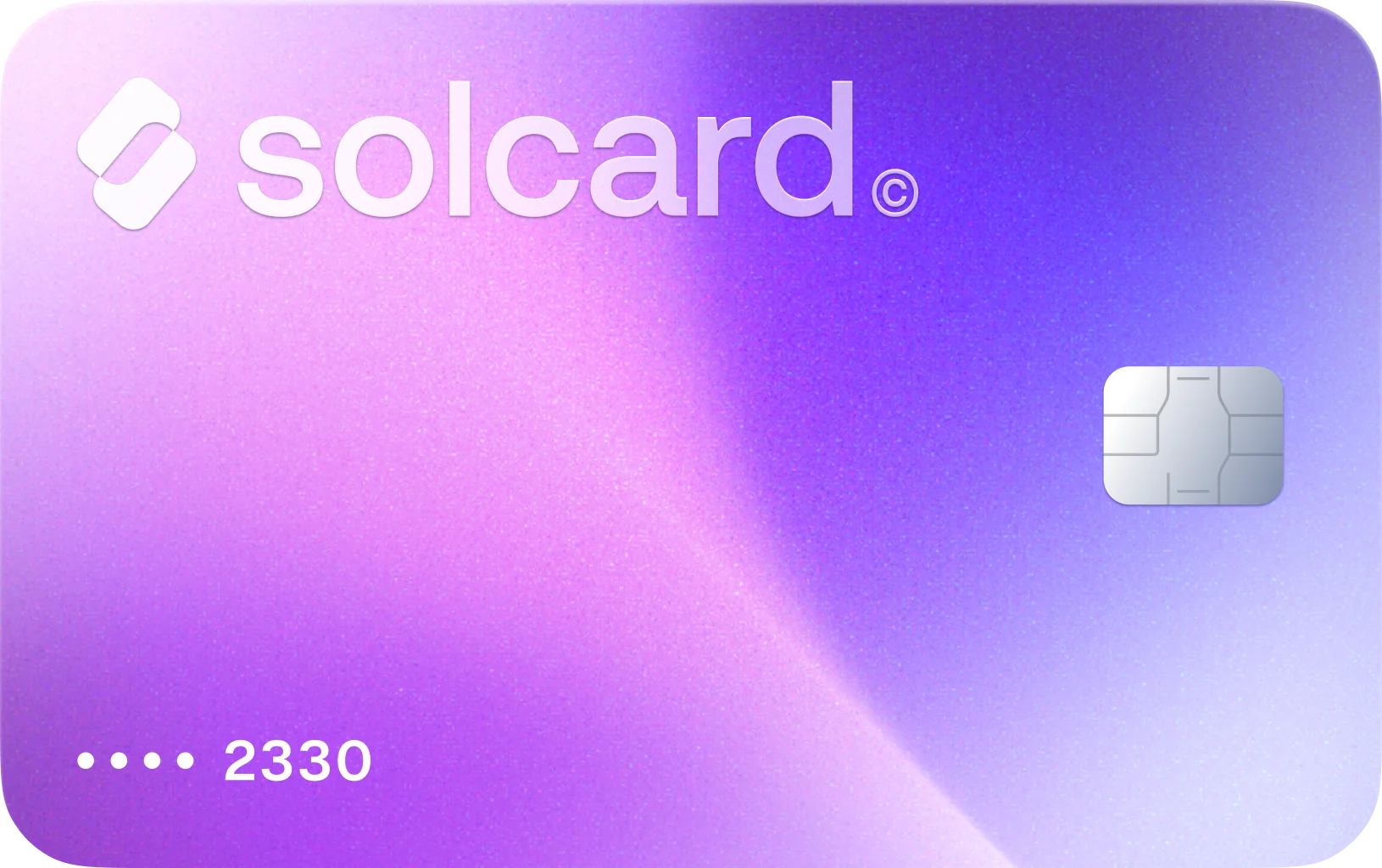
The card in the right-hand column is Virtual for AI & Ad Spend, SolCard's virtual card for AI tools, GPU clouds and ad platforms.
Say you spend $1,000 a month on GPUs.
| Route | What you send | Extra cost |
|---|---|---|
| Shadeform, USDC | $1,000 in USDC plus the network fee | Network fee only |
| Shadeform or Verda, card | $1,050 in crypto to the card | $50 in top-up fees, plus $10 once for the card |
On Verda, VAT or sales tax comes on top where it applies, whichever way you pay. The USDC route is cheaper by about the 5%. The card buys you auto top-up and access to Verda directly. A job deleted at zero balance can cost more than $50, so the right choice depends on how long your workloads run unattended.
GPU clouds watch closely for stolen cards. Stripe's case study says Shadeform uses Stripe Radar to block "bad actors using stolen credit cards to access compute." These are the declines that hit prepaid crypto cards most:
- Balance short of the refill. Auto top-up charges the full refill amount. Keep the card topped up above it.
- Billing details that don't match. Enter the name and billing address the card issuer has on file.
- Verification on the first charge. A 3D Secure prompt on a new card is normal. Complete it in the issuer's app.
- Rapid retries. Several failed attempts in a few minutes look like card testing. Fix the cause, wait, then try once.
For other causes, see why crypto cards get declined.
SolCard offers Virtual for AI & Ad Spend for merchants where prepaid crypto cards often struggle, and charges at both Shadeform and Verda Cloud have been approving on it. That is not a guarantee: any single charge can still decline, and the GPU cloud's own fraud checks still apply.
What it costs and what it doesn't do:
- Fees. $10 once for the card, then 5% of each top-up. The dashboard shows the cost before you pay.
- It isn't cheaper than USDC on Shadeform. If you top up Shadeform by hand, paying USDC directly avoids the 5%.
- It's built for this kind of spend. The card is meant for AI tools, GPU clouds and ad platforms, not groceries. For everyday spending, see SolCard's virtual cards and Platinum.
- Availability. SolCard isn't available in every country. The help centre's restricted list includes Nigeria, Russia, South Africa and Ukraine.
The same card works on other GPU clouds too, including RunPod and Vast.ai, so one top-up can cover several providers.
- Short jobs you watch, on Shadeform: pay in USDC. It's the cheaper of the two routes, and the $20 minimum is low.
- Verda hardware, crypto only, no card: fund Shadeform in USDC and launch Verda instances there, if the configuration you need is listed.
- Long or unattended jobs on either cloud: use a crypto-funded card with auto top-up. The 5% is the price of not losing an instance and its volumes at zero.
- Verda directly, at scale: if your company has a European bank account, SEPA top-ups avoid card fees. Below the 10,000 EUR or USD invoice minimum, a USD account without SEPA is in practice card-only.
For how other developers fund cloud and GPU bills from crypto, see our data on developer cloud spending.
Yes. Stripe's case study says Shadeform began accepting USDC in 2025 through Stripe. You pay from your wallet at Stripe's checkout when you add funds. Shadeform doesn't document other coins.
Not according to its own pages. Verda's terms make card payment the default, and its billing docs add SEPA transfers and bank invoices. Neither mentions crypto. To pay Verda from a wallet, use a card you top up with crypto.
$20 per Add Funds payment, according to Shadeform's quickstart. Stripe caps a single stablecoin payment at $10,000.
Not with a wallet payment. Both clouds' auto top-up charges a saved card. A crypto-funded card saved as your payment method lets auto top-up run while the money still comes from your wallet.
Verda's billing docs say your instances are discontinued and your volumes are deleted. Volumes can be restored up to 96 hours after deletion. Verda recommends an auto top-up trigger of at least 12 hours of estimated usage.
Shadeform's FAQ says it charges the same rate as going direct to the cloud provider, with no additional fee for launching instances. Prices on both sides change often, so compare the live rate in each console before you launch.
Yes. EUR accounts can top up by SEPA transfer, with transfer details generated in the console. USD accounts and non-SEPA banks top up through a bank invoice, with a 10,000 EUR or USD minimum.